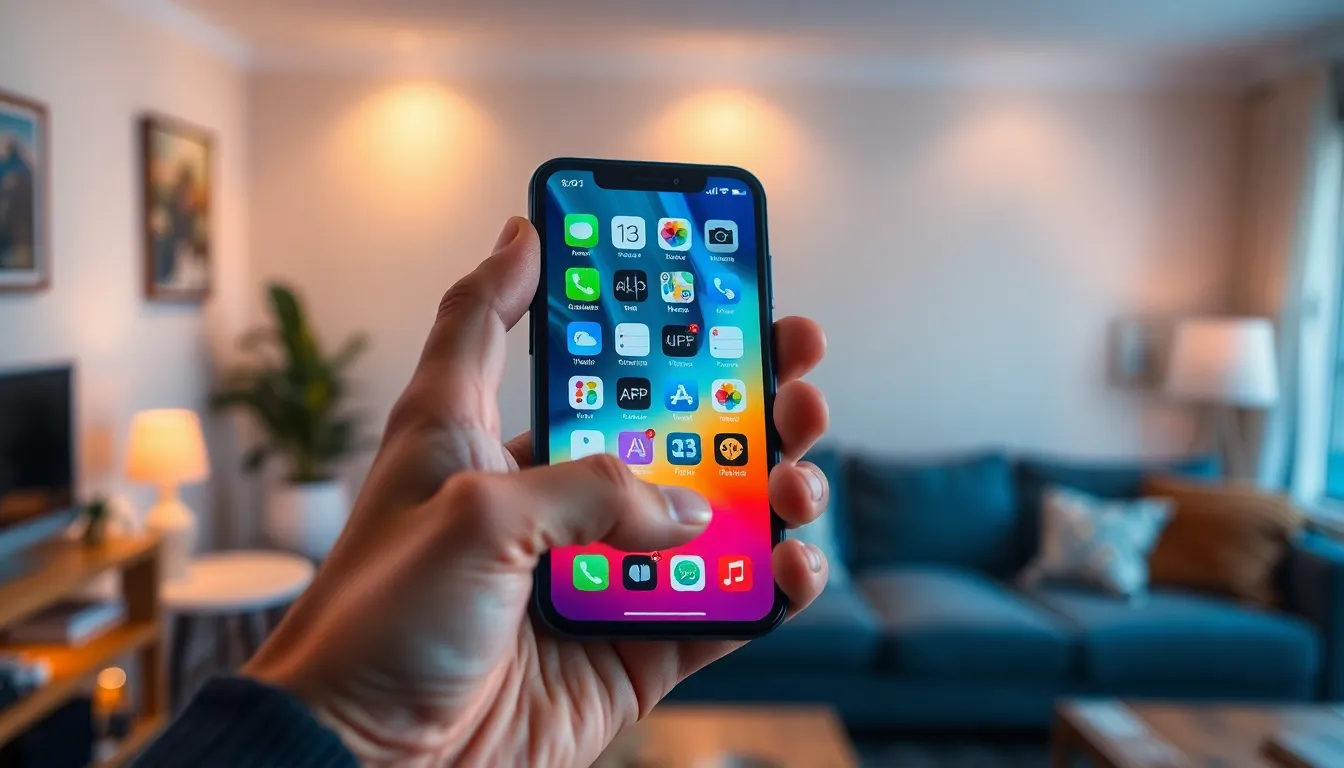
Ever accidentally sent your favorite app on a one-way trip to the app library? It happens to the best of us. One moment, you’re swiping through your home screen like a pro, and the next, you’re left wondering where that trusty app disappeared. Don’t worry; it’s not lost forever.
Adding an app back to your iPhone’s home screen is easier than finding a needle in a haystack—unless that needle is a social media app you can’t live without. With just a few taps, you can reclaim your digital space and get back to scrolling, swiping, and tapping in style. Let’s dive into the simple steps that’ll have your favorite apps back where they belong, ready for action.
Understanding the Home Screen on iPhone
The home screen serves as the central hub for iPhone users. It displays apps and tools essential for daily tasks and quick access.
The Role of Apps on the Home Screen
Apps play a significant role in enhancing the user experience. They provide immediate access to important functions like communication, entertainment, and productivity. Each app icon represents a unique functionality, keeping frequently used applications easily accessible. Users can arrange apps according to personal preferences, prioritizing important ones at the forefront. Custom organization results in streamlined navigation.
Customizing Your Home Screen Layout
Customizing the home screen layout adds a personal touch to iPhone devices. Users can arrange apps into folders to maintain organization and reduce clutter. Dragging an app to another creates a folder, simplifying access to related applications. Resizing widgets further enhances the layout, allowing users to view important information at a glance. Rearranging icons can be done simply by pressing and holding, then dragging them into desired positions. Personalization options empower users to create a home screen that reflects their style and needs.
Steps to Add an App Back to Your Home Screen

Restoring apps to the home screen is straightforward. Follow these methods to have your favorite apps easily accessible.
Using the App Store
First, open the App Store. Tap on your profile icon in the top right corner, then select purchased to view apps. Look for the app you wish to restore. If it shows a cloud icon, tap it to download. Once the download completes, the app returns to your home screen.
Accessing the App Library
Swipe left past all home screen pages to reach the App Library. Browse through the categorized folders to find the app. Tap and hold the app icon until a menu appears. Select “Add to Home Screen” from the options. That action places the app back onto the home screen.
Utilizing Spotlight Search
Swipe down from the middle of the home screen to access Spotlight Search. Type in the app name in the search field. Once the app appears in search results, press and hold the app icon. Choose “Add to Home Screen” to position it where desired on the home screen.
Troubleshooting Issues
Sometimes, app icons don’t appear on the home screen even after taking the right steps. This can stem from restrictions or original app settings. Users should first check if the app is indeed hidden in the App Library. Swiping left can reveal all apps, ensuring nothing’s been lost. If the app is visible, selecting it and choosing “Add to Home Screen” can restore it to its rightful place. Restarting the iPhone often solves minor glitches and brings back missing icons.
Managing hidden apps also requires specific attention. Users can navigate to “Settings” and select “Home Screen” to determine which apps are hidden. Apps might be set to show only in the App Library instead of the home screen. Adjusting this setting allows for better visibility. Regularly reviewing app organization also helps avoid confusion, ensuring the most used apps remain easily accessible. For those who prefer a tidy home screen, creating folders can simplify access to hidden apps.
Tips for Organizing Your Home Screen
Organizing the home screen enhances usability and access to apps. Simple adjustments streamline navigation and improve the overall experience.
Creating Folders
Folders help reduce clutter by grouping related apps together. Users can create folders by tapping and holding on an app icon until it wiggles, then dragging it onto another app. This action instantly forms a new folder containing both apps. They can rename the folder for convenience by tapping the name field. Organizing common themes, such as social media or productivity, makes it easy to locate apps quickly. Frequent access to grouped apps enhances efficiency while navigating the home screen.
Prioritizing Frequently Used Apps
Prioritizing frequently used apps ensures easy access to essential functions. Placing these apps on the home screen’s first page is advisable for quick retrieval. Users should consider moving less used apps to secondary pages or folders to minimize distraction. Dragging preferred apps to prominent positions leads to efficiency, as it reduces the time spent searching. Regularly reviewing and adjusting app placements keeps the home screen optimized for daily use. Regular checks help reflect current app usage, maintaining an organized and user-friendly interface.
Restoring apps to the home screen on an iPhone is a simple task that can significantly enhance the user experience. By following the outlined steps users can quickly retrieve their favorite apps and keep their home screens organized.
Regularly reviewing app placements and utilizing folders not only declutters the interface but also ensures that essential apps are always within reach. With these strategies in mind users can create a personalized and efficient home screen that caters to their unique needs. So don’t let misplaced apps hinder productivity; reclaim that space and enjoy seamless access to everything that matters.