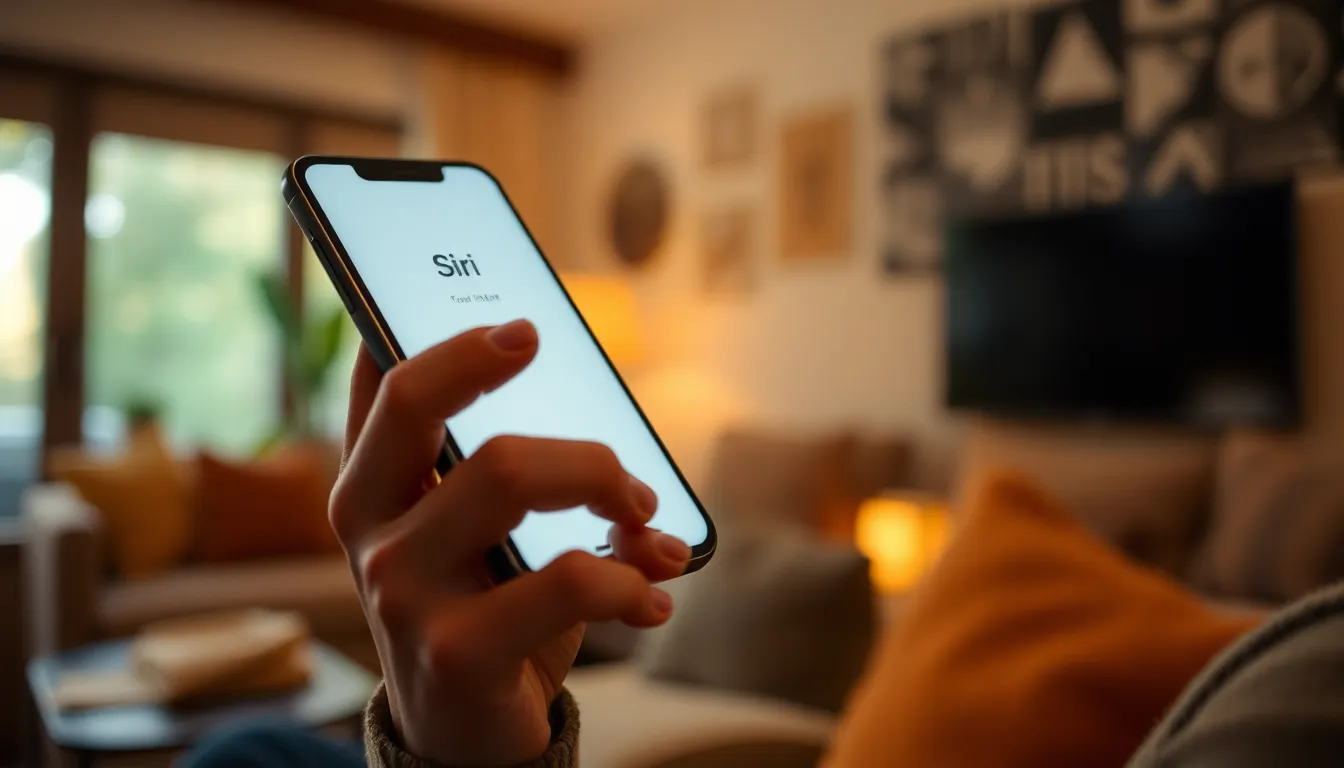
Ever felt like your iPhone’s developed a personality? If it’s suddenly chatting away, you’re not alone. Many users find themselves wondering why their device seems to have a lot to say. Is it trying to be helpful or just showing off its new voice skills?
From Siri’s witty comebacks to unexpected notifications, the talking feature can be both amusing and a tad bewildering. It’s like having a tiny assistant who won’t stop chiming in during your daily life. But fear not! Understanding why your iPhone is talking to you can turn confusion into clarity, and maybe even a few laughs. Let’s dive into the reasons behind this vocal phenomenon and explore how to regain control over your chatty companion.
Understanding Voice Features on iPhones
Voice features on iPhones enhance user interaction and accessibility. These functionalities can sometimes cause the device to vocalize unexpectedly.
Siri: Your Personal Assistant
Siri acts as a virtual assistant designed to respond to voice commands. Users can ask Siri to send messages, set reminders, or answer questions. This intelligent assistant often provides witty remarks, enhancing user interaction. Personalized responses stem from users’ preferences and usage patterns. Regular updates improve Siri’s performance and expand its capabilities. As a result, iPhones sometimes seem to engage in conversations, leading to amusing situations.
VoiceOver: Accessibility Feature
VoiceOver serves as an accessibility feature for visually impaired users. This screen reader vocalizes on-screen text, enabling users to navigate their devices efficiently. Users can swipe, tap, and use gestures to control their iPhones. Multilingual support allows VoiceOver to read text in different languages. For many, this function proves essential for daily tasks, contributing to the device’s chatty demeanor. VoiceOver’s spoken feedback ensures that users stay informed, enhancing their overall experience.
Common Reasons Your iPhone Talks to You

Several factors contribute to an iPhone’s vocal behavior. Understanding these reasons can help users manage their devices effectively.
Accidental Activation of Siri
Users frequently experience accidental activation of Siri. This typically occurs when a user inadvertently presses the side button or says “Hey Siri” without intending to. Such unintended prompts might result in unexpected responses or actions. Consequently, the device can engage in conversations at inopportune moments. Adjusting the settings to limit Siri’s activation helps prevent these occurrences. Disabling “Hey Siri” or changing button configurations reduces the chances of Siri interrupting.
VoiceOver Settings Enabled
VoiceOver serves as a powerful accessibility feature on iPhones. When activated, it reads aloud on-screen text, including app notifications and messages. This feature significantly benefits visually impaired individuals by facilitating navigation and interaction with the device. Users who didn’t enable VoiceOver intentionally may find their iPhones unexpectedly vocalizing information. To rectify this, navigating to Settings and disabling VoiceOver resolves the issue. Moreover, familiarity with this setting ensures users know when the feature is active.
How to Manage Voice Features
Managing the voice features on an iPhone ensures a smoother user experience. Adjusting settings can significantly reduce unexpected vocalizations.
Disabling Siri
Siri activation often occurs unintentionally. Users can disable Siri by navigating to Settings. Tapping on Siri & Search allows adjustments to voice command settings. Choosing the option to turn off “Listen for ‘Hey Siri'” stops accidental responses. An alternative method involves toggling off “Press Side Button for Siri.” Making these changes creates a quieter environment without sacrificing usability.
Adjusting VoiceOver Settings
VoiceOver serves as a valuable tool for accessibility. To adjust VoiceOver settings, users go to Settings and select Accessibility. Tapping on VoiceOver provides options to customize the feature. Turning off VoiceOver disables vocalizations that may interfere with normal use. Exploring additional settings allows for tailored speech preferences and navigation gestures. Ensuring that VoiceOver is only activated when needed helps maintain control over unexpected announcements.
Troubleshooting Voice Issues
Unexpected vocalizations from an iPhone can often be resolved through straightforward troubleshooting steps.
Restarting Your iPhone
Restarting an iPhone can quickly eliminate many voice-related issues. Press and hold the side button along with the volume button until the power off slider appears. Slide to power off the device. Once the iPhone is completely off, wait about 30 seconds before pressing the side button again to turn it back on. This simple reset clears temporary glitches, which might cause unwanted voice behavior, allowing the device to perform optimally.
Updating iOS
Keeping the iPhone’s iOS updated ensures the latest features and bug fixes are in place. Navigate to Settings, then tap on General. Selecting Software Update alerts users to any available updates. Install updates as necessary to enhance the performance of Siri and other voice features. These updates frequently address issues that lead to unexpected vocalizations, improving overall functionality and user experience. Regular updates play a crucial role in maintaining device reliability and responsiveness.
Understanding why an iPhone talks can transform a frustrating experience into a manageable one. By recognizing the features that contribute to its vocal behavior users can take control and customize their settings for a more tailored interaction. Whether it’s adjusting Siri’s activation methods or fine-tuning VoiceOver options these steps can significantly reduce unexpected interruptions.
Staying informed about updates and troubleshooting techniques also plays a key role in maintaining a smooth user experience. With a little knowledge and the right adjustments users can enjoy their iPhone’s capabilities without the constant chatter. Embracing these tools not only enhances usability but also ensures the device remains a helpful companion rather than an unwelcome distraction.